



The BUZUD app allows you to conveniently access and download your health reports. Follow these simple steps to obtain your report:
Step 1: Sign In
- Open the BUZUD app on your device.
- Enter your login credentials.
- Tap “Sign In.”
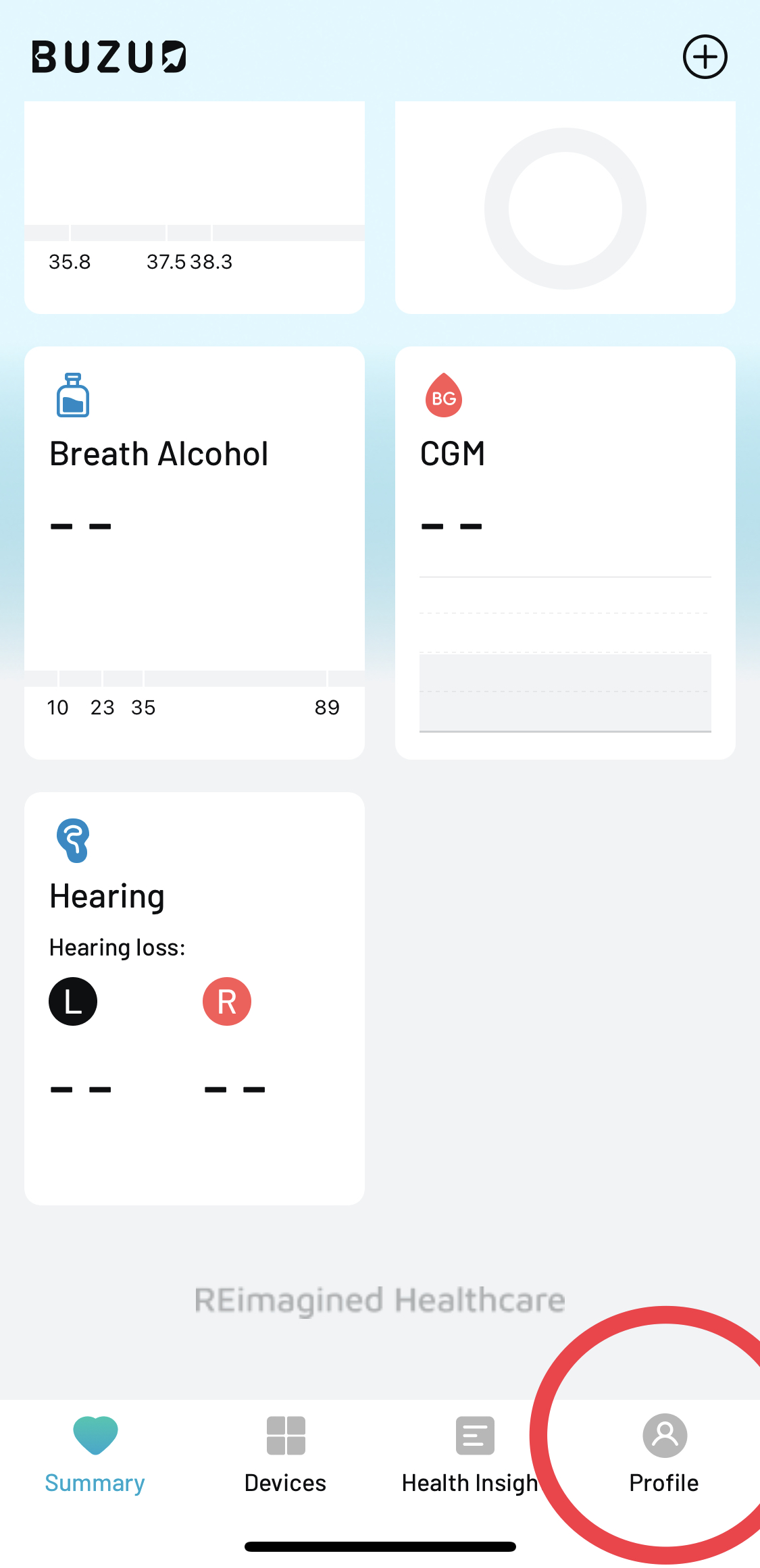
STEP 2: NAVIGATE TO THE PROFILE SECTION
- From the main dashboard, locate the “Profile” icon at the bottom right corner and tap on it.
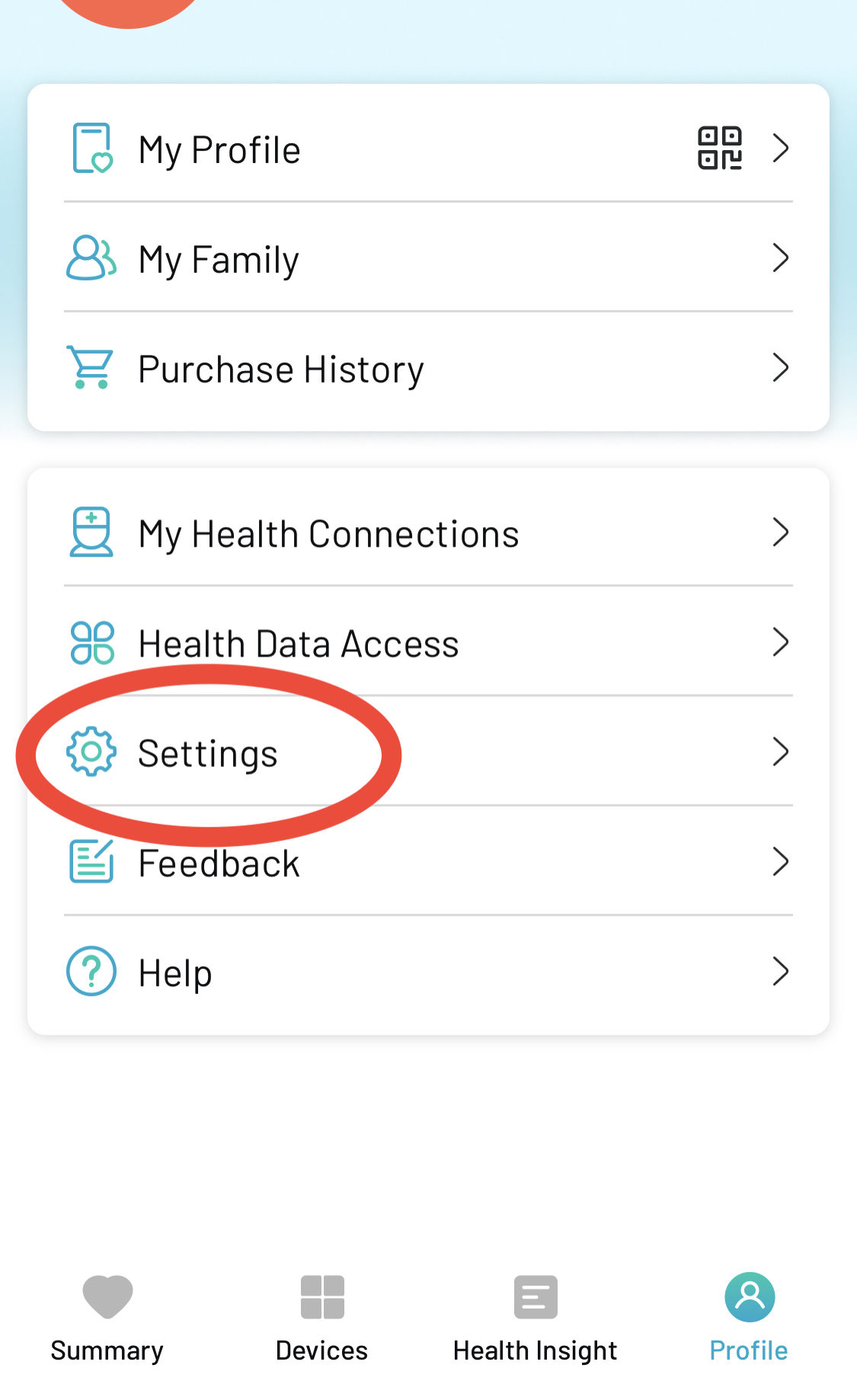
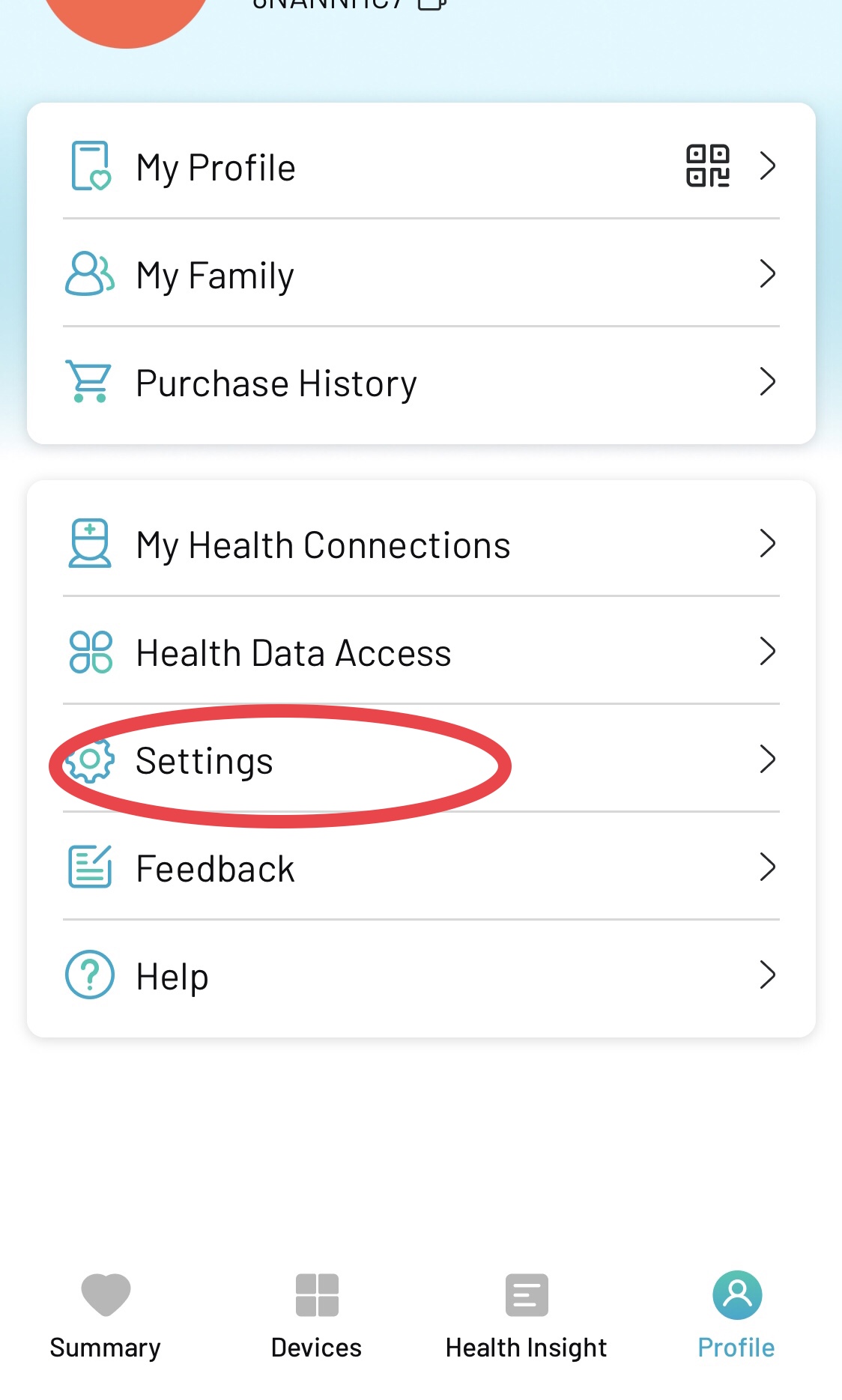
STEP 3: ACCESS SETTINGS
- In the Profile menu, find and tap the “Settings” section.
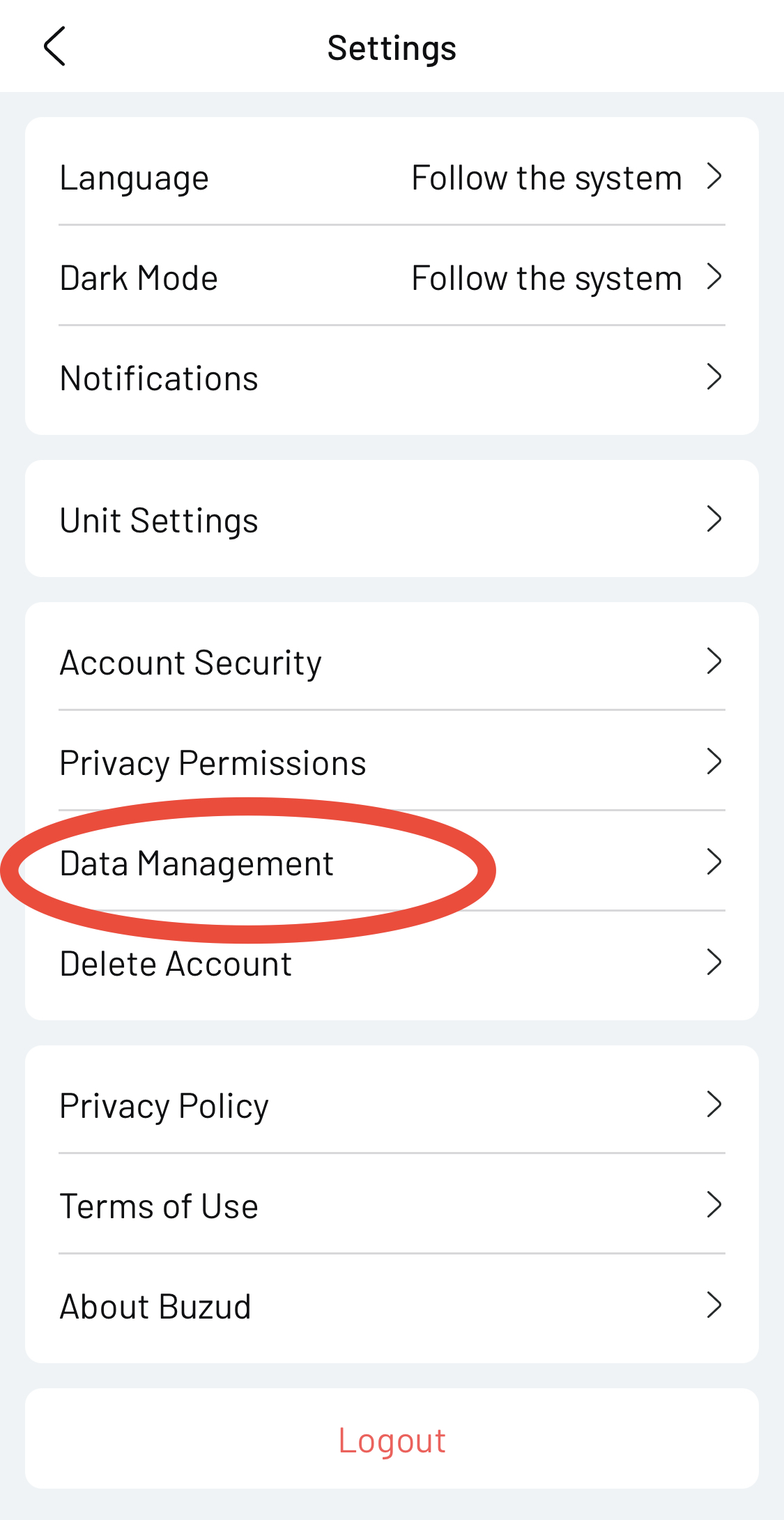
Step 4: DATA MANAGEMENT
- In the Settings menu, tap on “Data Management.”
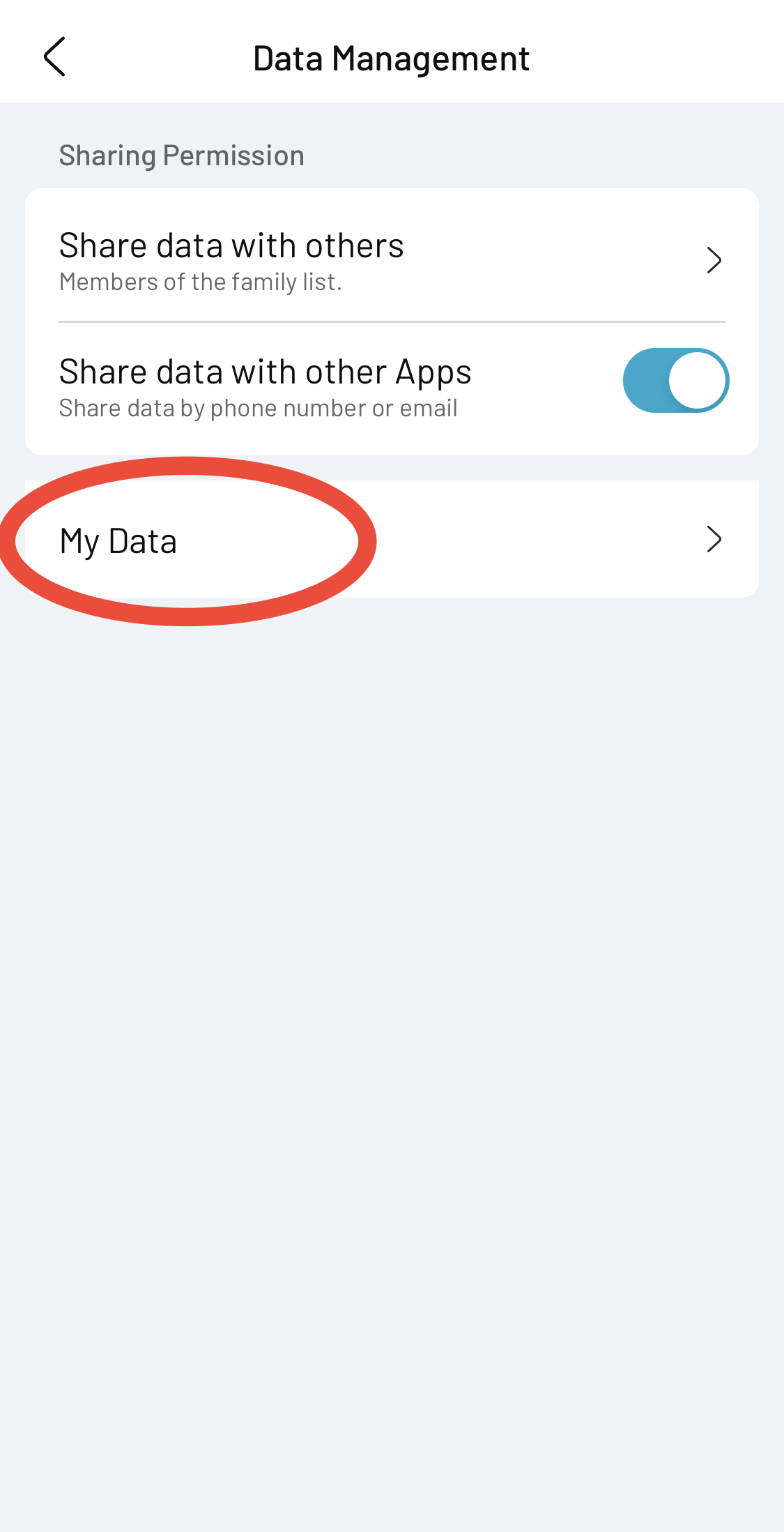
Step 5: MY DATA
- Tap on “My Data” to access your health information and reports.
Step 6: DOWNLOAD DATA
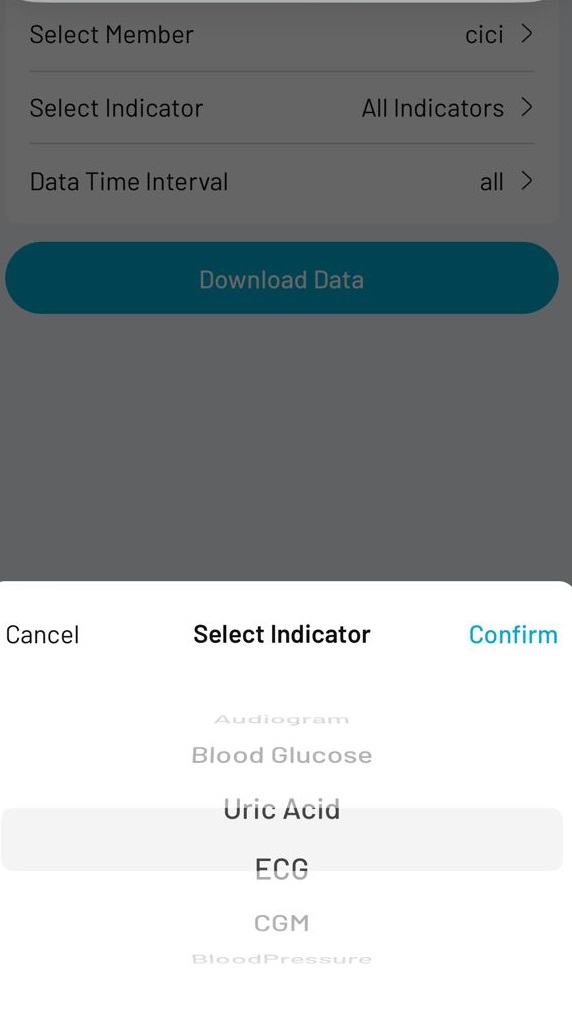
- Under “Select Indictor” choose “All Indicators” or a particular Indicator and tap “Confirm”.
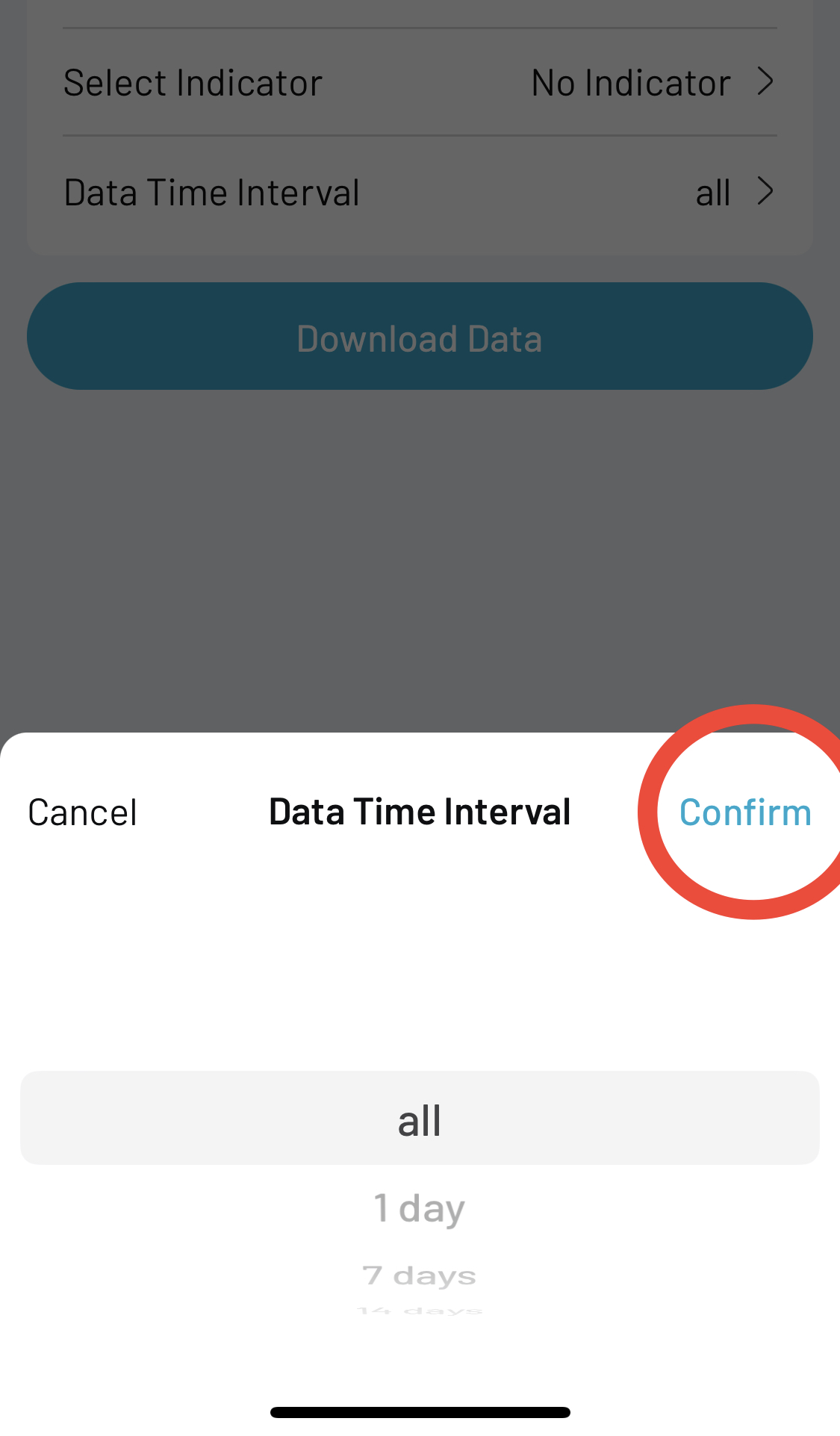
- Under “Date Time Interval” choose between “All”, “1 day”, “7 days”, “14 days” or “30 days” and tap “Confirm”.
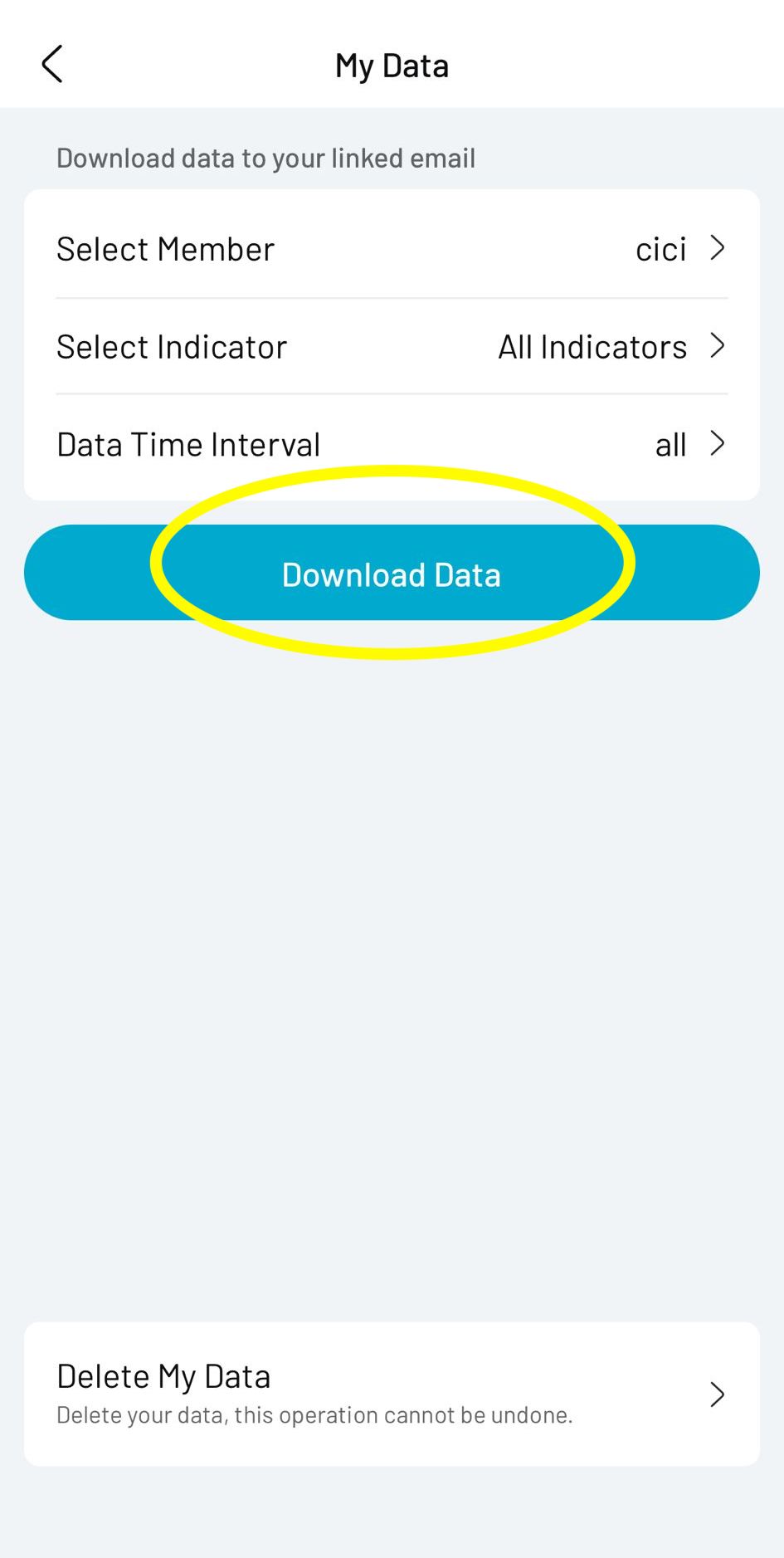
- Tap on “Download Data” to download your health reports.
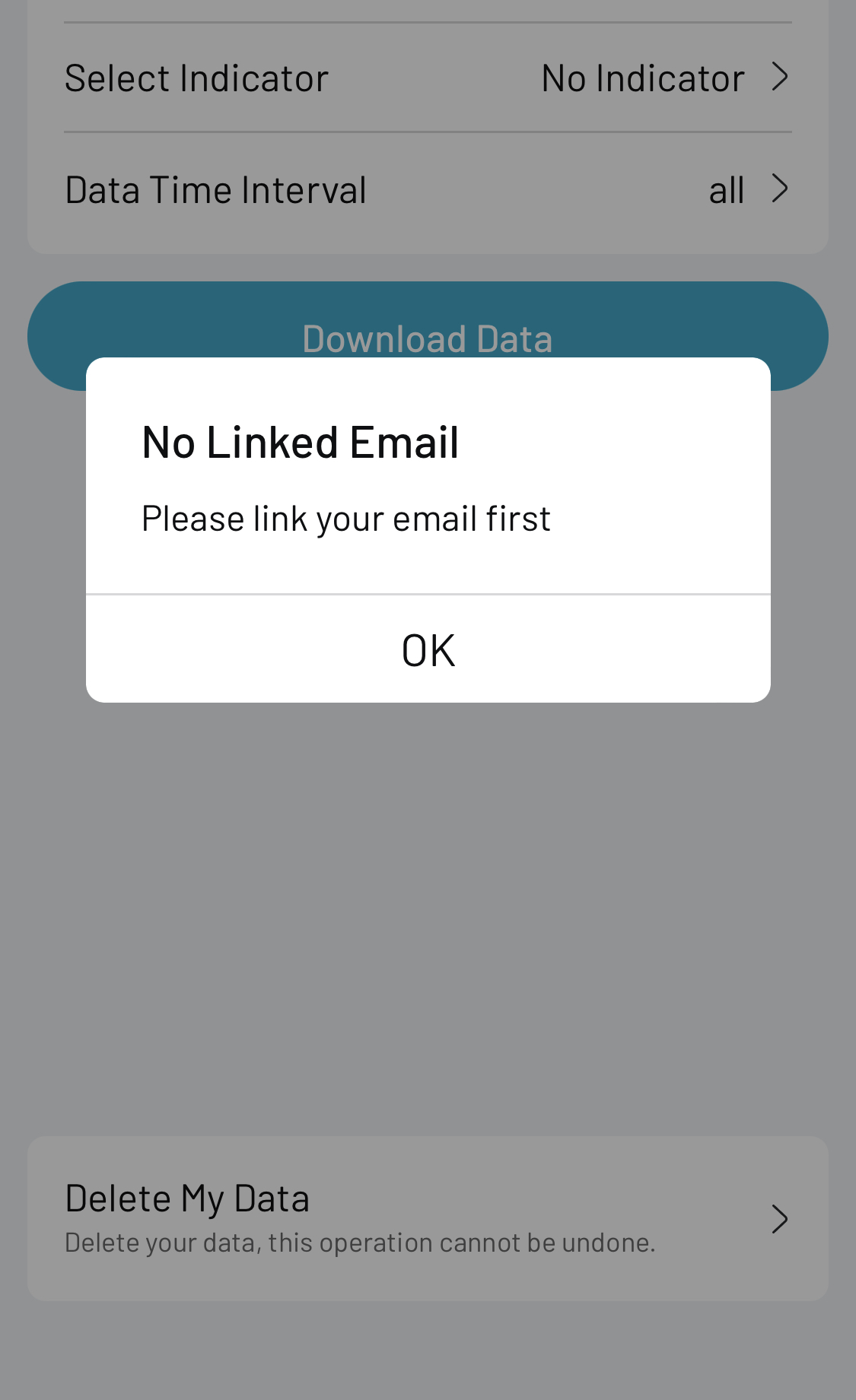
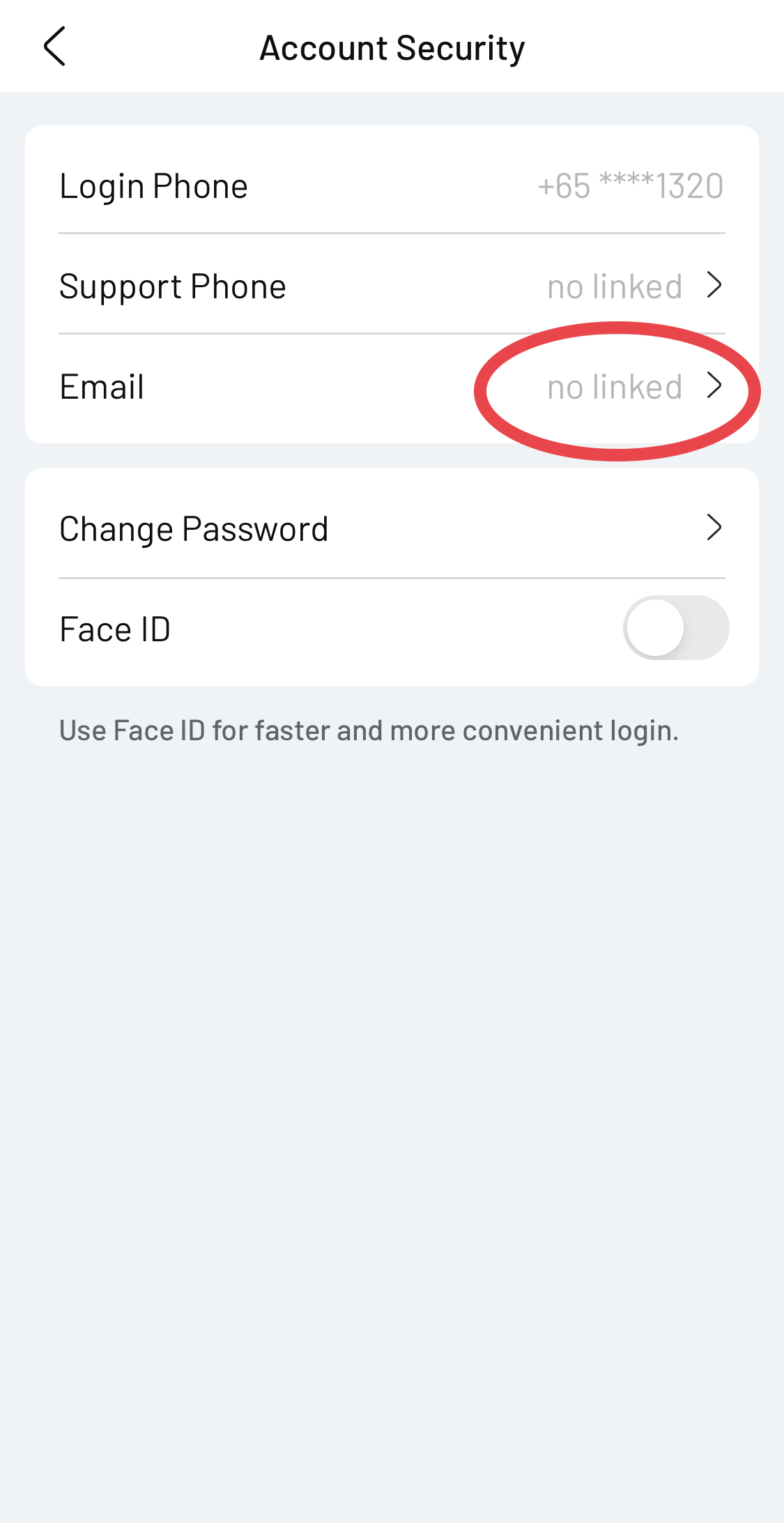
Step 7: NO LINKED EMAIL
- Follow the steps below to link your email.
Step 8: ACCESS SETTINGS
- Return to the Profile menu, find and tap the “Settings” section.
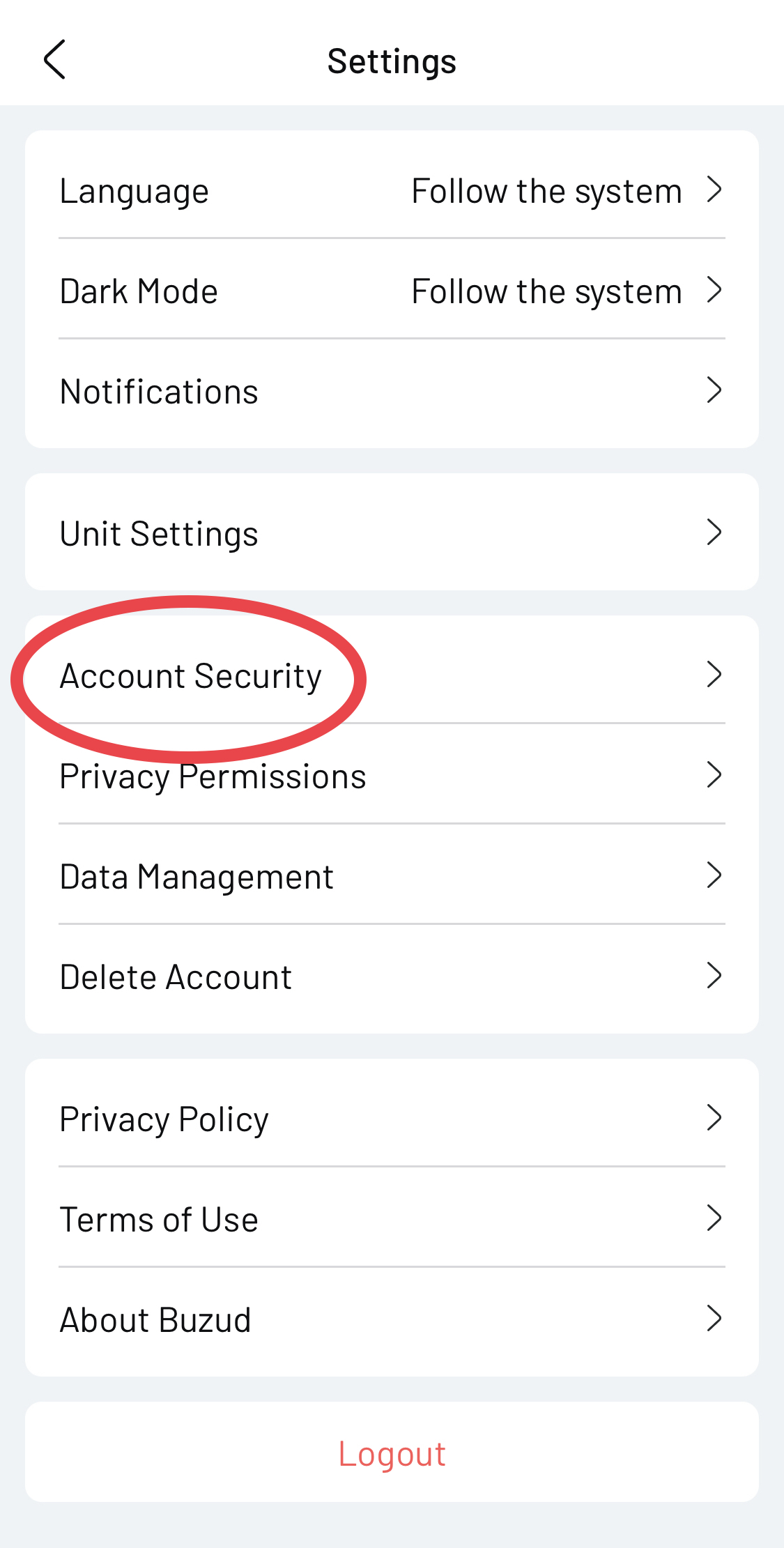
Step 9: ACCOUNT SECURITY
- In the Settings menu, tap on “Account Security.”
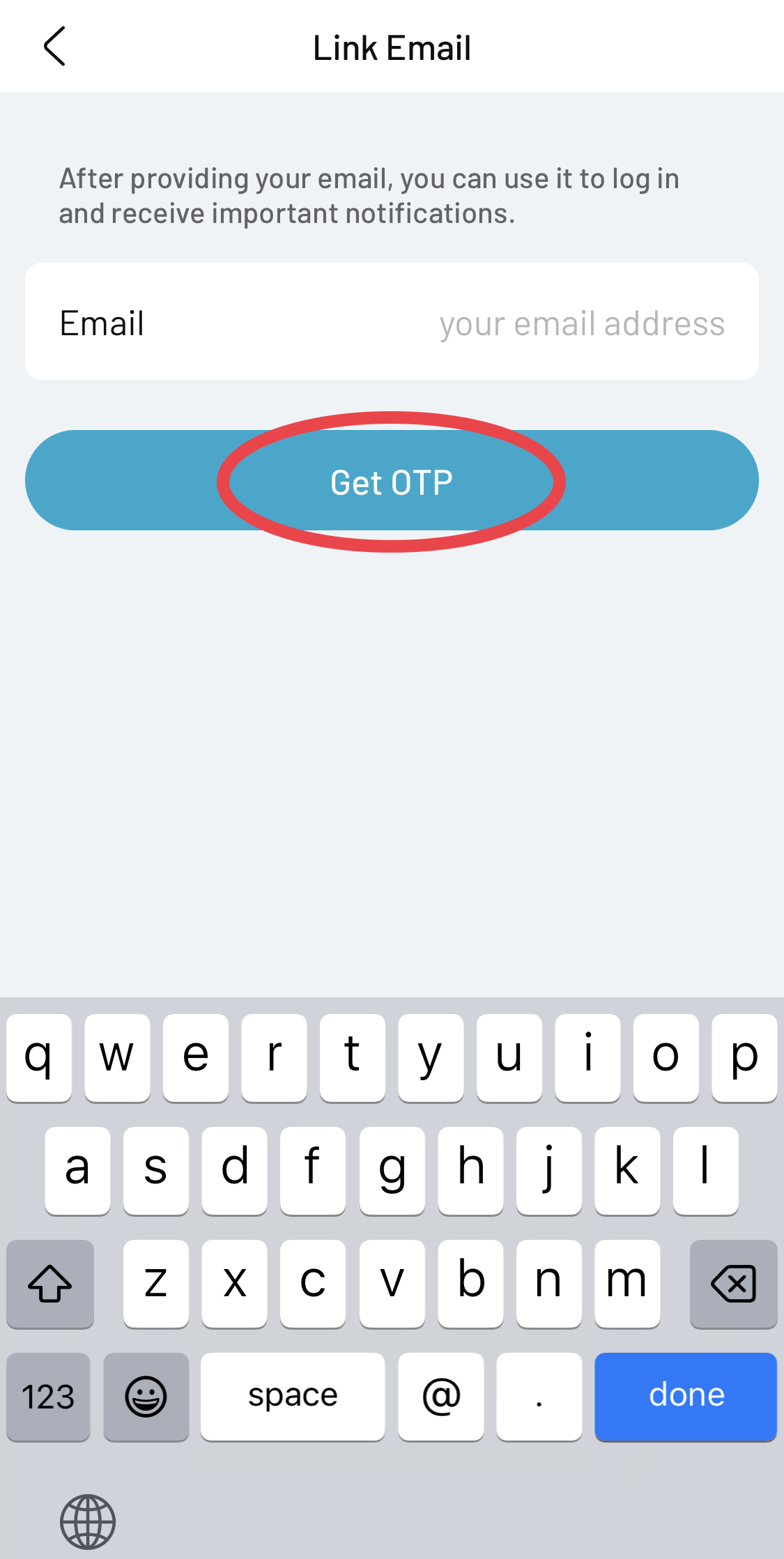
Step 10: LINK EMAIL
- In the Account Security menu, tap to add email.
- Enter your email address and tap on “Get OTP”.
By following these steps, you can easily download your health reports from the BUZUD health app.